How to Upload Program from PLC to PC: Step-by-Step Guide

The short answer
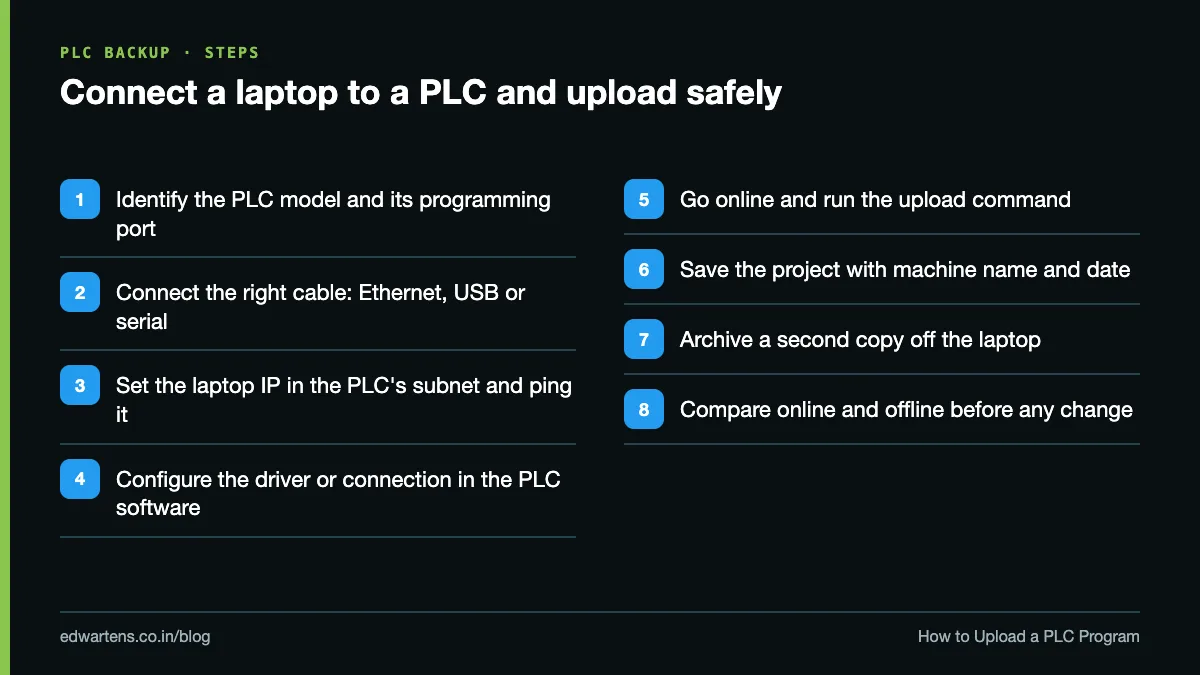
To upload a program from a PLC, connect your laptop to the PLC's programming port (Ethernet, USB or serial), put the laptop on the same IP subnet if it is Ethernet, open the PLC's own software, go online and use its upload command: Online > Upload device as new station in Siemens TIA Portal, Upload from Who Active or the Network Browser in Rockwell Studio 5000, Online > Read from PLC in Mitsubishi GX Works2/GX Works3, and PLC > Transfer Project from PLC in Schneider Control Expert. Upload means PLC to PC. Download means PC to PLC. Always save and archive the uploaded copy before you change anything.
Watch: uploading from a PLC in TIA Portal
The video above is TIA Portal - How to Upload from a PLC by PLCskilltree, embedded with thanks. EDWartens is not affiliated with the creator. It runs about 13 minutes and walks through finding a CPU on the network and pulling its hardware and program into a new TIA Portal project. It is part of our free Siemens TIA Portal Commissioning course. The written guide below adds the cables, IP settings and upload steps for Allen-Bradley, Mitsubishi, Delta, Schneider and older Siemens PLCs, and what you can lose on the way.
Upload vs download: which direction is which?
Upload copies the program from the PLC to your PC. Download copies the program from your PC into the PLC and replaces what is running. Rockwell's Logix Designer help puts it exactly that way: upload transfers the program from the controller to the computer, download transfers it from the computer to the controller.
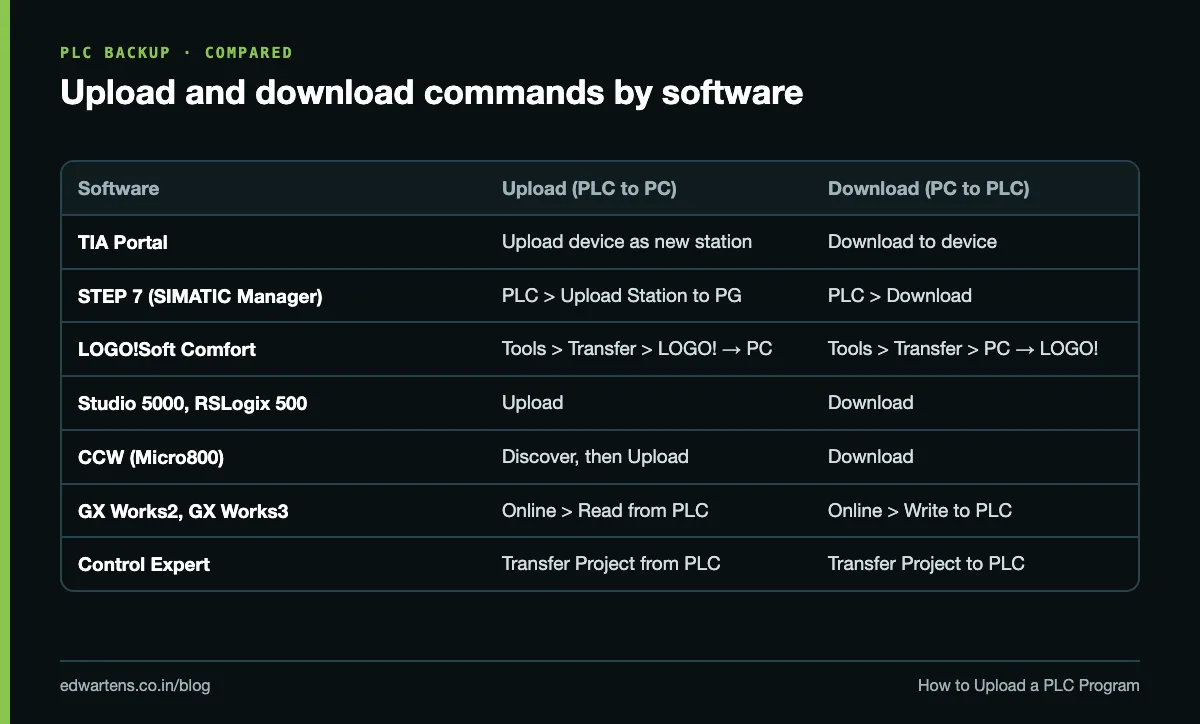
The trouble is that every vendor uses different words, and Mitsubishi avoids the words entirely.
Software | Upload (PLC to PC) | Download (PC to PLC) |
|---|---|---|
Siemens TIA Portal | Upload from device / Upload device as new station | Download to device |
Siemens STEP 7 (SIMATIC Manager) | PLC > Upload Station to PG | PLC > Download |
Siemens LOGO!Soft Comfort | Tools > Transfer > LOGO! → PC | Tools > Transfer > PC → LOGO! |
Rockwell Studio 5000 / RSLogix 500 | Upload | Download |
Rockwell CCW (Micro800) | Discover (first time), Upload | Download |
Mitsubishi GX Works2 / GX Works3 | Online > Read from PLC | Online > Write to PLC |
Schneider Control Expert | PLC > Transfer Project from PLC | PLC > Transfer Project to PLC |
Why you upload before you touch a running machine
On site, the program in the PLC is the only version you can trust. The laptop copy in the maintenance room may be months old, or from a different machine. So the first job on any unfamiliar machine is an upload, saved with the date and machine name, before you go online to change anything.
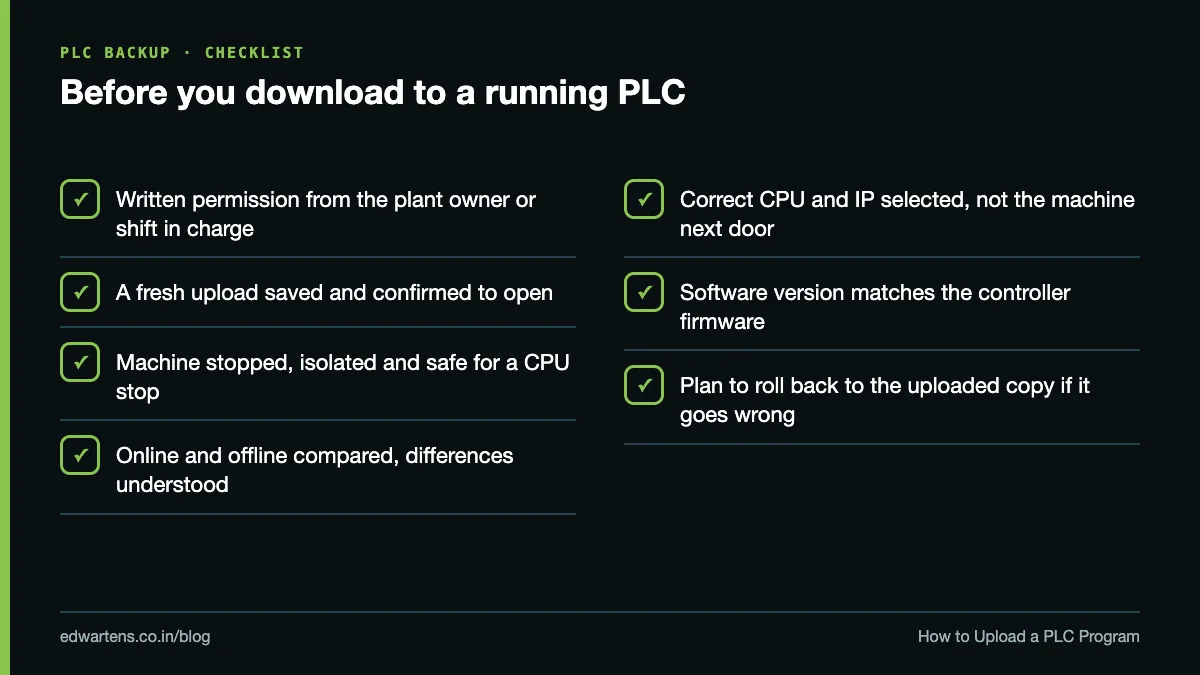
A download replaces the running program. On many platforms it also forces the CPU to STOP or Program mode: Rockwell notes that the controller must be in Program or Remote Program mode before downloading. Stopping a CPU stops the machine, and outputs may drop. Never download to a running plant without the owner's written permission, an isolated and safe machine, and a backup you have verified opens.
Our first 90 days on site guide covers the habits that keep new engineers out of trouble here.
How to connect a PLC to a laptop
PLC family | Programming port | What you need on the laptop side |
|---|---|---|
Siemens S7-1200, S7-1500 | PROFINET (RJ45) | Ethernet patch cable, laptop IP in the same subnet |
Siemens S7-300 (MPI/DP CPUs) | MPI/DP (9-pin) | Siemens PC Adapter USB or a CP 5711 |
Siemens S7-300 PN CPUs | PROFINET (RJ45) | Ethernet patch cable |
Siemens LOGO! 8 | Ethernet (RJ45) | Ethernet patch cable |
Allen-Bradley CompactLogix, ControlLogix | Ethernet, plus USB on many current CPUs | Ethernet or USB cable, driver in RSLinx or FactoryTalk Linx |
Allen-Bradley MicroLogix, SLC 500 | RS-232 (DF1) or Ethernet, by model | Serial cable or USB-serial adapter, or Ethernet |
Allen-Bradley Micro800 | USB on Micro830/850, Ethernet on Micro820/850 | USB cable or Ethernet |
Mitsubishi FX3U, FX2N | RS-422 (8-pin mini-DIN) | Mitsubishi USB-SC09-FX cable or equivalent |
Mitsubishi FX5U (iQ-F) | Ethernet (RJ45) | Ethernet cable, direct connection in GX Works3 |
Delta DVP, AS series | RS-232 on older DVP; USB or Ethernet on newer CPUs | Serial or USB cable or Ethernet, driver in COMMGR |
For an FX5 CPU, Mitsubishi's FAQ says a category 5 or higher STP Ethernet cable works, and a cross cable can also be used for a direct connection to the computer.
Setting the laptop IP for an Ethernet PLC
- Find the PLC's IP address: from the drawings, a label on the panel, the HMI's settings page, or the CPU's display.
- On Windows, open the Ethernet adapter's IPv4 settings and set a fixed address in the same subnet. For a PLC at 192.168.0.1 with mask 255.255.255.0, use something like 192.168.0.10.
- Make sure no other device on that network already uses your chosen address.
- Turn off Wi-Fi if it is on the same subnet range, or Windows may route traffic the wrong way.
- Ping the PLC. If it replies, the cable and IP are fine and any remaining problem is in the software driver or firewall.
Mitsubishi's GX Works3 manual warns that the Windows Firewall can cause a timeout unless you allow the software through; the same applies to most engineering tools.
How to upload program from a Siemens PLC in TIA Portal
For an S7-1200 or S7-1500 when you do not have the project:
- Connect by Ethernet and set the laptop IP as above.
- Open TIA Portal, switch to the Project view and create a new empty project.
- Select the project in the project tree and choose Online > Upload device as new station (hardware and software).
- In the dialog, choose the PG/PC interface type (PN/IE) and your laptop's network adapter, then click Start search.
- Select the CPU in the list of accessible devices and click Upload.
- When the upload finishes, save the project and archive it (Project > Archive) with the machine name and date.
If you already have a project with a matching CPU, select that CPU and use Online > Upload from device (software) instead. That brings back the software but not the hardware configuration.
Siemens' own manual for an S7-1500 family CPU lists what each backup type includes: "Upload device as new station" brings back the hardware configuration, OB/FC/FB/DB blocks, PLC tag names, technology objects and the retentive values of data blocks, and works with the CPU in RUN or STOP. "Backup from online device" also captures memory card contents, but the CPU must be in STOP, so do not use it on a running line.
An older method from the S7-1200 System Manual still works: expand Online access, double-click Update accessible devices, then drag the online CPU's Program blocks folder into your offline CPU and confirm Upload from device (S7-1200 System Manual).
New to TIA Portal? Our first TIA Portal project walkthrough explains the project tree, and once you are online the diagnostic buffer guide shows where the CPU logs its faults.
How to upload program from Siemens S7-300 PLC in STEP 7
- Connect the PC Adapter USB to the CPU's MPI/DP port (or Ethernet for a PN CPU).
- In SIMATIC Manager, open Options > Set PG/PC Interface and select the matching interface, for example PC Adapter (MPI) or TCP/IP on your network card.
- Create a new project, then choose PLC > Upload Station to PG.
- Select the CPU's rack and slot (an S7-300 CPU is normally rack 0, slot 2), click View to list accessible nodes, pick the CPU and confirm.
- STEP 7 creates a new station in the project. Save it and use File > Archive for the backup.
Know the limits. Siemens' Programming with STEP 7 manual states that uploaded blocks contain no symbolic names and no comments, and force jobs are not uploaded. You get working code with addresses like M10.3 and DB5.DBW2, not names. If the original project with its symbol table exists anywhere, find it.
How to upload program from a LOGO! PLC
- Connect an Ethernet cable to the LOGO! 8 base module.
- Set the laptop in the same subnet. Siemens' LOGO! system manual gives the default addresses: 192.168.0.1 for LOGO! 0BA8, and 192.168.0.3 for LOGO! 8.FS4 and later.
- In LOGO!Soft Comfort, choose Tools > Transfer > LOGO! → PC.
- Select the module's IP address in the transfer dialog and confirm.
- Save the program file.
The same manual says you cannot upload a password-protected circuit program to LOGO!Soft Comfort without the correct password. Older LOGO! modules without Ethernet need the LOGO! PC cable instead.
How to upload program from an Allen-Bradley PLC
Studio 5000 Logix Designer (CompactLogix, ControlLogix)
- Connect by Ethernet or USB and configure a driver: in RSLinx Classic or FactoryTalk Linx, add the Ethernet or USB driver and confirm the controller appears.
- Open Logix Designer. In version 37 and earlier use Communications > Who Active; from version 38 Rockwell has replaced Who Active with the Network Browser.
- Expand the path, select the controller and click Upload.
- Choose an existing project file that matches the controller, or create a new one.
- Save the .ACD file with the date.
Step 4 matters. Rockwell's help says rung comments and tag descriptions are kept offline in the project file, and an upload merges them back only when you upload into a matching project file. Upload into a blank file and you get working logic without the documentation. For fault handling after you are online, see clearing Allen-Bradley major and minor faults.
RSLogix 500 (MicroLogix, SLC 500)
- Configure the driver in RSLinx Classic: an RS-232 DF1 driver for a serial port, or an Ethernet driver.
- In RSLogix 500, choose Comms > Who Active Go Online, select the processor and click Upload.
- If you have the original .RSS file, upload into it so the symbols and comments are kept; otherwise you get bare addresses.
- Save the file.
Connected Components Workbench (Micro800)
Rockwell's CCW guide for Logix users calls the first-time upload Discover:
- Open CCW and click Discover on the Start Page.
- Browse to the Micro800 controller in the Connection Browser and click OK.
- The controller image is uploaded into a new project. Save it with File > Save Project As.
The guide warns that the upload fails if the controller was programmed with a newer CCW version, or if the project source code was never downloaded to the controller (the Download Source Code option is in CCW version 13 or later).
How to upload program from a Mitsubishi PLC
GX Works3 (iQ-F FX5, iQ-R)
Mitsubishi's GX Works3 Operating Manual gives this procedure:
- Set the route with Online > Specify Connection Destination. For an FX5 on a direct Ethernet cable, use Ethernet Port Direct Connection and pick your adapter under CPU Module Direct Coupled Setting.
- Select Online > Read from PLC. If no project is open, choose the series on the Series Selection screen.
- On the Online Data Operation screen, open the Read tab, tick the parameters, programs and comments you want, and click Execute.
- Save the project.
GX Works2 (FX3U, FX3G, Q series)
- Set the connection under Connection Destination in the navigation pane, choose the PC side interface (Serial/USB for a USB-SC09-FX cable) and run Connection Test.
- Choose Online > Read from PLC, tick the program, parameters and device comments, and execute. Mitsubishi's FAQ uses the same menu to read device memory in GX Works2.
- Save the project.
Device comments come back only if someone wrote them to the PLC. A Mitsubishi program can also be locked: GX Works3 offers file passwords, block passwords and security keys, and FX3 models support a keyword that blocks reading.
How to upload program from a Delta PLC
Delta's ISPSoft (and WPLSoft for older DVP models) talks to the PLC through Delta's COMMGR communication manager. Create a driver in COMMGR first (RS-232, USB or Ethernet, matching your cable), then in ISPSoft use the upload command (PLC to PC) and save the project. A Delta program can also be set to block uploads, in which case no software trick will read it. Our free Delta DVP PLC with ISPSoft course includes videos on uploading and downloading.
How to upload program from a Schneider PLC
In EcoStruxure Control Expert (formerly Unity Pro) for Modicon M340 and M580:
- Set the connection with PLC > Set Address (USB or the CPU's IP address), then PLC > Connect.
- Choose PLC > Transfer Project from PLC.
- Save the project and keep the .STA archive as Schneider recommends.
This only works if the project was downloaded with upload information. Schneider's FAQ explains that the error "does not contain valid upload information" appears when Tools > Project Settings > PLC embedded data > Upload information was not enabled at download, and the only fix is to re-download from the original source with that option set. Schneider's other FAQ describes the compare and Transfer Project from PLC routine. For Modicon M221 and M241 on EcoStruxure Machine Expert, check that software's online help, because the commands differ.
What you lose when you upload a PLC program
Platform | What comes back | What can be missing or blocked |
|---|---|---|
S7-300/400, STEP 7 | Blocks, hardware configuration | Symbols and comments; force jobs |
S7-1200/1500, TIA Portal | Hardware, blocks, PLC tag names, retentive DB values | Code inside know-how protected blocks without the password |
Studio 5000 | Logic, tags, I/O configuration | Rung comments and descriptions if not uploaded into a matching .ACD |
RSLogix 500 | Logic, data table | Symbols and comments unless you upload into the original .RSS |
Micro800, CCW | Full project | Upload can fail if source was never downloaded to the controller |
GX Works2/GX Works3 | Program, parameters | Comments not written to the PLC; anything behind a password or keyword |
Control Expert | Full project | Upload fails without the Upload information option |
On S7-1200 and S7-1500, know-how protection hides a block's code but, per the S7-1200 System Manual, still shows its title, interface and the call structure. If the CPU itself has an access protection level set, TIA Portal will ask for the password before it lets you in. There is no legitimate way around a password you do not have; ask the machine builder.
Upload failed? The usual causes
- Wrong subnet or a second IP on the laptop adapter: ping first.
- No or wrong driver in RSLinx, FactoryTalk Linx, COMMGR or Set PG/PC Interface.
- Software too old for the controller's firmware, such as an older CCW against a newer Micro800 project, or a TIA Portal version without the CPU's firmware support.
- Password, keyword or access level set by the machine builder.
- Source not stored in the controller (Micro800 source download, Control Expert upload information).
- Firewall blocking the engineering software.
For faults you find once you are online, our PLC troubleshooting guide is the next read.
Practise uploads before you need them
The first time you upload should not be on a breakdown at 2 a.m. Practise on a training rig or a simulator. Our free courses on Siemens TIA Portal, Allen-Bradley Studio 5000, RSLogix 500 and Mitsubishi GX Works2 cover going online in each tool.
If you want to do it on real hardware, the EDWartens engineering team runs classroom Siemens TIA Portal training in Bangalore and multi-brand PLC training in Bangalore at Electronic City.
Frequently asked questions
Q: What is the difference between upload and download in a PLC?
A: Upload copies the program from the PLC to your PC. Download copies the program from your PC into the PLC and replaces what is running.
Q: How do I upload a program from a PLC to a PC without the original project?
A: Create an empty project and use the software's upload command, for example Online > Upload device as new station in TIA Portal, Upload in Studio 5000, or Online > Read from PLC in GX Works. Depending on the platform you may get the logic without symbols or comments.
Q: Does uploading a PLC program stop the machine?
A: A normal upload is a read operation and works with the CPU in RUN on Siemens, Rockwell and Mitsubishi PLCs. Some full backups, such as Siemens' Backup from online device, need the CPU in STOP, so check before you click.
Q: How do I connect a Siemens PLC to a laptop?
A: S7-1200, S7-1500 and PN versions of the S7-300 use an Ethernet cable to the PROFINET port with the laptop on the same subnet. MPI or DP versions of the S7-300 need a Siemens PC Adapter USB or a CP 5711.
Q: Why is the upload from my Mitsubishi PLC empty or refused?
A: The program may be protected by a file password, block password, security key or keyword, or the comments were never written to the PLC. Check the connection destination first, then ask the machine builder for the password.
Q: Can I upload a password protected PLC program?
A: Not without the password. Siemens LOGO!, TIA Portal know-how protection, Mitsubishi security features and Rockwell controller passwords are designed to block reading, so contact the machine builder or owner.
Q: Why are my rung comments missing after an Allen-Bradley upload?
A: Rockwell controllers keep logic in the controller but the documentation in the offline project file. Upload into a project file that matches the controller to merge the comments back.
Q: How do I upload a program from a Schneider PLC?
A: In EcoStruxure Control Expert, connect and use PLC > Transfer Project from PLC. It only works if the project was downloaded with the Upload information option enabled in Project Settings.
Learn this, free
The courses that teach this
Every lesson, the written notes and the practice are free with an account. Only the certificate is optional and paid.


