Factory I/O with TIA Portal: Setup Tutorial for Beginners

The short answer
To connect Factory I/O to TIA Portal you need an S7-1200 or S7-1500 project, PLCSIM running that project in RUN, and Factory I/O's Siemens S7-PLCSIM driver connected to it. You map each scene sensor to a PLC input (for example %I0.0) and each actuator to an output (for example %Q0.0), press Play in the scene, and your ladder logic moves real-looking conveyors. The two things that stop it working most often are a CPU that is not in RUN and addresses that do not match between the driver and the program.
Watch the lesson
The video above is Factory IO tutorial for beginners: Get started and connect to TIA portal, Siemens S7-1200 PLC by Technical Mindshare, embedded with thanks. EDWartens is not affiliated with the creator. It runs about 18 minutes and opens our free Siemens TIA Portal with Factory I/O course.
First, the lesson installs Factory I/O and opens a scene. Next it sets up a TIA Portal project for an S7-1200, starts PLCSIM and selects the Factory I/O driver. Then it connects, checks the driver status, maps the scene's sensors and actuators to PLC I/O, and writes and runs a first rung that moves the conveyor. If you are still deciding which simulator to use at all, read our overview of learning PLC programming without hardware first. This post is the hands-on connect-and-map companion to it.
What you need
- Windows PC. Factory I/O, TIA Portal and PLCSIM are Windows programs. Allow plenty of RAM; TIA Portal alone is heavy.
- TIA Portal with PLCSIM. STEP 7 Basic or Professional with S7-PLCSIM. Trial licences are available from Siemens.
- Factory I/O. Real Games offers a free trial; the paid editions differ in which drivers they include, so check that your edition has the Siemens drivers.
- Version compatibility. Factory I/O's documentation lists which PLCSIM versions each release supports. Check it before you install, especially with the newest TIA Portal releases.
The connection chain
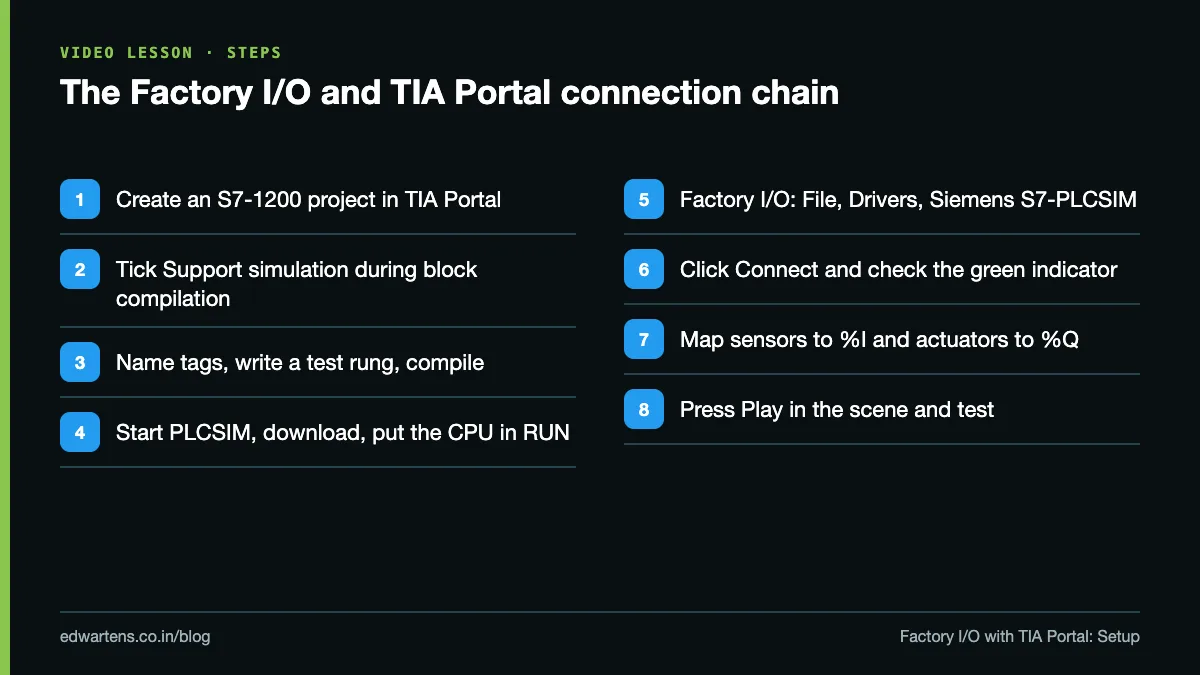
Every working setup follows the same chain. If one link is missing, nothing moves.
1. Create the TIA Portal project
Create a new project and add a CPU 1214C DC/DC/DC (any S7-1200 or S7-1500 that your PLCSIM supports will do). Leave the I/O addresses at their defaults: onboard inputs start at %I0.0 and outputs at %Q0.0.
2. Allow simulation
PLCSIM needs the project to be compiled with simulation support. Right-click the project name at the top of the project tree, choose Properties, open the Protection tab and tick Support simulation during block compilation. Without it, the download to PLCSIM is refused.
3. Tags and a test rung
In the default tag table, create:
| Tag | Address | Factory I/O item (From A to B style scene) |
|---|---|---|
| Start_PB | %I0.0 | Start button or a sensor you choose |
| Stop_PB | %I0.1 | Stop button (set it up as NC) |
| Box_At_End | %I0.2 | Diffuse sensor at the end of the belt |
| Conveyor | %Q0.0 | Belt conveyor (digital) |
Item names differ from scene to scene; use the names you see when you hover over each part in Factory I/O. If your scene has no push buttons, add a start and a stop button from the parts palette in Edit mode, or set the bits from a watch table. In Main [OB1], write: a normally open contact on Start_PB with a seal-in branch on Conveyor, then a normally open contact on Stop_PB, then a normally closed contact on Box_At_End, then the Conveyor coil. The belt runs when you press start and stops when the box reaches the end sensor.
4. Compile, start PLCSIM, download, RUN
Compile hardware and software (0 errors). Select the PLC and choose Online, Simulation, Start. PLCSIM opens and TIA Portal offers to download; accept, and put the simulated CPU into RUN when asked. The RUN indicator in the PLCSIM window must be green.
5. Choose the driver in Factory I/O
Open Factory I/O and load a scene; From A to B is the simplest. Open File, Drivers and pick Siemens S7-PLCSIM from the list. Open its configuration to check the CPU family (S7-1200) and the start addresses of inputs and outputs, so that sensors land on %I0.x and actuators on %Q0.x.
6. Connect
Click Connect. The driver status should turn to connected with a green indicator. If it stays red, the CPU is not running in PLCSIM, or the PLCSIM version is not one this Factory I/O release supports.
7. Map the I/O
The driver window shows scene sensors on one side and actuators on the other, with the PLC input and output points in the middle. Drag each sensor tag onto an input point and each actuator onto an output point, matching your tag table: start to I0.0, stop to I0.1, the end sensor to I0.2, the conveyor to Q0.0.
8. Play and test
Go back to the scene and press Play. Press the start button in the scene, and the belt should run. Open a watch table in TIA Portal (online) and confirm that every bit changes when you expect it to. If the end sensor reads 1 with no box in front of it, the sensor is reporting "beam clear" rather than "object present"; invert your contact or change the sensor's setting.
The mapping, written out
| Scene item | Type | PLC address | What you should see |
|---|---|---|---|
| Start button | Digital input | %I0.0 | Bit 1 while pressed |
| Stop button (NC) | Digital input | %I0.1 | Bit 1 when not pressed |
| End sensor | Digital input | %I0.2 | Bit changes as a box arrives |
| Belt conveyor | Digital output | %Q0.0 | Belt runs when the bit is 1 |
If you use a real CPU instead of PLCSIM
Factory I/O can also drive a real S7-1200 or S7-1500 over Ethernet with its Siemens S7-1200/S7-1500 driver. Enter the CPU's IP address in the driver configuration, and in TIA Portal enable Permit access with PUT/GET communication from remote partner in the CPU properties under Protection and Security, Connection mechanisms. Download, and the real CPU now runs the virtual plant. Read PLC simulator vs real hardware for what simulation teaches and what it cannot.
Common mistakes
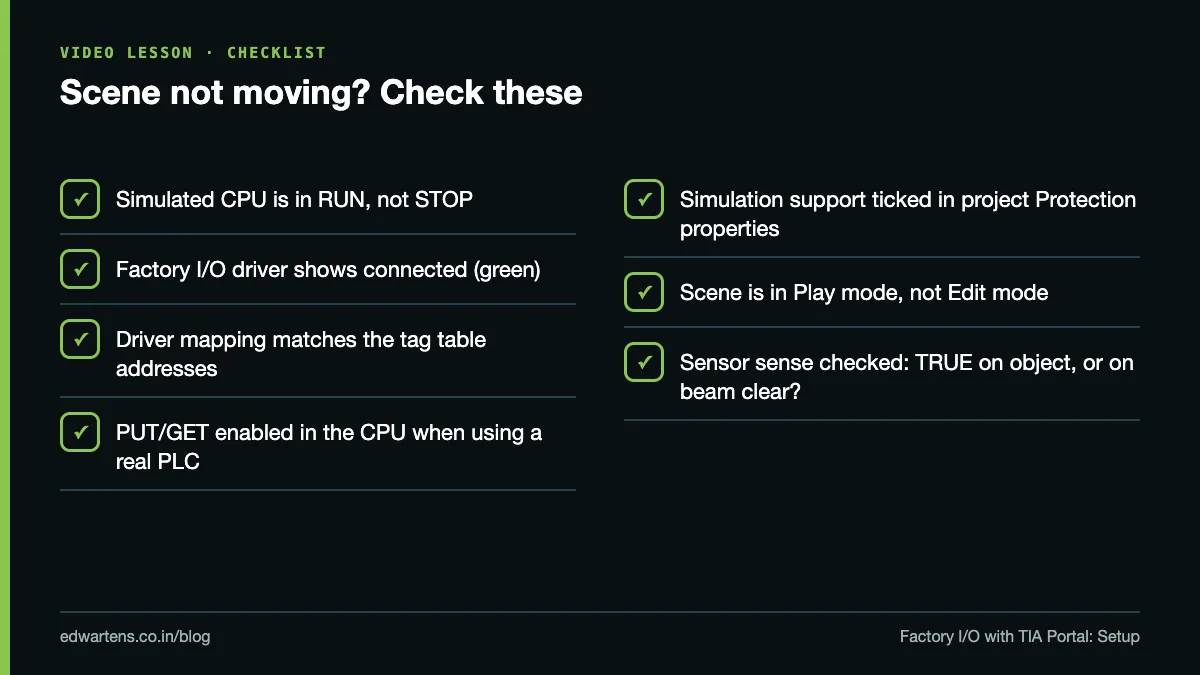
- CPU in STOP. Factory I/O connects but nothing happens. Put PLCSIM in RUN.
- Simulation support not ticked. The download to PLCSIM fails. Tick it in the project's Protection properties and recompile.
- Wrong driver. The S7-PLCSIM driver is for PLCSIM; the S7-1200/S7-1500 driver is for a real CPU over Ethernet. PLCSIM Advanced is a separate product with its own connection method; follow Factory I/O's documentation for it.
- Addresses do not match. The driver puts the belt on Q0.1 and your rung drives Q0.0. Make the driver mapping and the tag table agree, then check them in a watch table.
- Sensor sense inverted. Some sensors report TRUE when nothing is in front of them. Watch the bit before writing logic around it.
- Scene not in Play. In edit mode, nothing moves, whatever the PLC does.
Practice task
Using From A to B, prove the connection before you write any real logic. Done means: moving a box in front of the sensor by hand changes I0.2 in a TIA Portal watch table, and setting Q0.0 to 1 from the watch table (modify value, online) runs the belt. Then add the start/stop rung above and make the belt stop when a box reaches the end sensor. When it works, add a counter that counts boxes; PLC counters CTU, CTD and CTUD shows how.
Learn it free
The free Siemens TIA Portal with Factory I/O course goes on from this setup through more scenes, such as sorting, a filling tank, pick and place and a warehouse, each with notes and a practice task. If TIA Portal itself is new to you, start with Siemens TIA Portal in Three Hours, or try TIA Portal: Build a Machine for a longer project. For more free software to practise with, see free PLC software to practise at home.
Frequently asked questions
Q: Can Factory I/O work with TIA Portal without a real PLC?
A: Yes. Run the project in S7-PLCSIM, select Factory I/O's Siemens S7-PLCSIM driver and connect; no hardware is needed.
Q: Why does my Factory I/O driver not connect to PLCSIM?
A: The most common causes are a simulated CPU that is not in RUN, simulation support not enabled in the project's Protection properties, or a PLCSIM version that your Factory I/O release does not support.
Q: Which Factory I/O scene should I start with?
A: From A to B. It has a single conveyor and a few sensors, so you can prove the connection and the mapping before moving to sorting or pick and place scenes.
Q: Do I need PUT/GET enabled for Factory I/O?
A: Only when Factory I/O talks to a real S7-1200 or S7-1500 over Ethernet. With PLCSIM and the S7-PLCSIM driver it is not the setting that matters.
Q: Is Factory I/O free?
A: Factory I/O offers a free trial; continued use needs a paid licence. TIA Portal and PLCSIM also have time-limited trials from Siemens.
Learn this, free
The courses that teach this
Every lesson, the written notes and the practice are free with an account. Only the certificate is optional and paid.